



сurrent accounts
find out more

 maibank
 maib business app
 internet banking - individuals
 new internet banking - maib business
 internet Banking - BankFlex
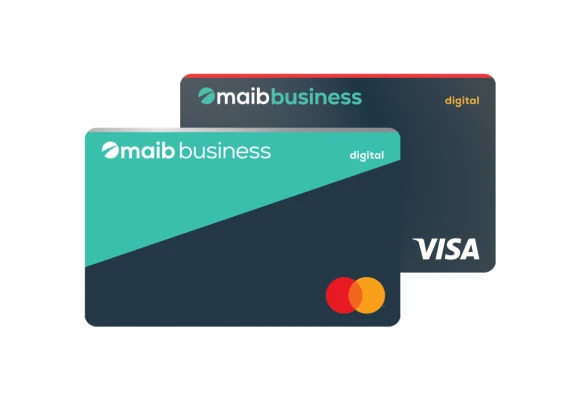
Digital business cards – ideal payment tools for using the card anytime and everywhere in the world to make and monitor the company’s administrative expenses and avoid the risks related to cash payments.
The digital cards are intended for all legal entities that use the maib business app
Business Digital card:
For freelancers who are self-employed, maib offers the Digital Business card included in the business package Start, with free service for the first 6 months. More details are available on the page dedicated to freelancers.
Card account free top-up:
Check the list of current rates.
All maib deposits are guaranteed according to Law on the Guarantee of Deposits in Banks No 160 of June 22, 2023. Details here.
The digital card can only be requested by current bank customers via the maib business web service.
A business card is defined as a payment card linked to an account opened in the name of a legal entity, an individual entrepreneur, or a person engaged in another type of business activity.
What are the purposes for which a business card can be used, and what can be paid with it?
In practice, business cards are used for the following purposes:
The use of a business card is prohibited for:
A business card is issued in the name of a legal entity or an individual entrepreneur and is linked to a payment account opened under the entity’s name. The card also displays the first and last names of the authorized persons (employees, administrators) who are permitted to carry out transactions on behalf of the company, or the vehicle number to which the card is linked (for transportation companies).
Documents required for issuing a business card:
The expenses related to the issuance and use of business cards depend on the type of card, the currency of the account, and whether additional operations or optional banking services are performed. The following types of fees may apply:
Company expenses related to banking services for the issuance and use of business cards may be recognized as deductible for corporate income tax purposes if they are related to business activities.
In accounting, these fees are recorded with the following journal entries:
Debit Account 713 “Administrative Expenses”, sub-account 7135 “Expenses for Administrative Services” or Account 712 “Distribution Expenses”, sub-account 7129 “Other Distribution Expenses” (for trading organizations)
Credit Account 244 “Other Bank Accounts”, sub-account 2442 “Bank Cards”
According to the General Chart of Accounts, account 244 “Other Bank Accounts”, sub-account 2442 “Bank Cards” is intended to consolidate information regarding the existence and movement of funds on bank cards. Account 244 “Other Bank Accounts”, sub-account 2442 “Bank Cards”, is an asset account. Debits to this sub-account record cash inflows, while credits record cash usage. The balance of sub-account 2442 “Bank Cards” is debit and represents the amount of cash available on the business card, determined in accordance with accounting standards.
In the accounting records, operations on the business card account are recorded using Account 244 “Other Bank Accounts,” sub-account 2442 “Bank Cards.” Analytical records under sub-account 2442 “Bank Cards” can be maintained for each individual business card. If multiple business cards are issued for a single account, records can be maintained separately for each cardholder.
The following accounting entries are used to reflect receipts in Moldovan Lei on a business card:
For operational and administrative expenses, cash advances are issued according to the deadlines set by the entity’s management, which shall not exceed 30 days, except for expenses related to travel outside the Republic of Moldova. Any unused cash must be returned to the company’s cash desk within 5 working days after the expiration of the period for which it was issued.
Payments in Moldovan Lei made with the business card are recorded as follows:
The funds spent must be justified through an advance settlement, to which the corresponding supporting documents are attached.
The deposit of unused funds back into the account by the advance holder is recorded as follows:
Debit Account 244 “Other Bank Accounts,” sub-account 2442 “Bank Cards”
Credit Account 226 “Receivables from Staff,” sub-account 2261 “Advances to Cardholders”
Business cards can also be issued for accounts held in foreign currency. In the accounting records, the funds associated with these cards are recorded in account 244 “Other Bank Accounts,” sub-account 2442 “Bank Cards.” If the company opens multiple current accounts for which business cards will be issued, it is recommended to maintain analytical records for each account separately.
In cases where multiple business cards are issued for a single account, it is advisable to organize analytical records for each cardholder individually.
The business card can be funded in foreign currency using the following methods:
The bank statement serves as the supporting document for recording both the funding and debiting operations of the funds associated with the business card.
Foreign currency held in the account associated with a business card is considered a monetary item in foreign currency, which must be revalued using the official Moldovan leu exchange rate as of the reporting date. The company may revalue these foreign currency monetary items either at the reporting date or according to another periodicity established in its accounting policies (monthly, quarterly, etc.).
Favorable and unfavorable exchange rate differences arising as a result of recalculation at the reporting date of monetary items are recognized as current income and expenses and accounted for as follows:
When a business card is used in foreign currency, a receivable is recorded in Account 226 “Employee receivables,” subaccount 2261 “Advances to employees” for the amount owed by the employee. This receivable is recorded in Moldovan lei (MDL) at the official exchange rate on the date the amount is debited according to the bank statement. Subsequently, the receivable is not revalued at the reporting date and is recorded in the financial statements at the official Moldovan leu (MDL) exchange rate on the date of its initial recognition. The settlement of this receivable occurs upon the submission of the advance settlement report by the employee.
When calculating the company’s corporate income tax, foreign exchange differences are included in the taxable income according to the general principles.
A business card issued in foreign currency can be used by the cardholder, i.e., the company employee, for the following purposes:
Based on the bank statement, the accounting records reflect the debit of funds from the current account associated with the business card, as follows:
Debit Account 226 “Employee Receivables”, subaccount 2261 “Receivables from Advance Holders”
Credit Account 244 “Other Bank Accounts”, subaccount 2442 “Bank Cards”
In the employee’s advance report, the amounts are recorded with the date indicated in the bank statement, and once the respective receivable represents an advance for the employee, it is not revalued. In the company’s accounting records, amounts debited from account 244 “Other Bank Accounts” are recorded in Moldovan lei (MDL) at the official exchange rate of the National Bank of Moldova on the date of the economic transaction, as indicated in the bank statement.
For conducting transactions, the bank may provide sums of money in the form of bonuses, cashback, or moneyback. The legislation does not contain definitions for the terms “cashback” or “moneyback.” The essence of the operation consists of the bank returning to the organization’s account a portion of the amount spent on purchases paid with the business card.
The legislation does not establish a specific accounting procedure to be applied to the receipt of the aforementioned bonuses, cashback, or moneyback. Therefore, the company has the right to develop its own accounting mechanism, using professional judgment and ensuring its inclusion in the accounting policy.
In this regard, the following approaches can be considered:
When an employee uses a business card to make customs payments, this transaction is treated as the issuance of an advance (receivable) to the employee. In accounting, the transaction is recorded as follows:
Debit Account 226 “Employee receivables,” sub-account 2261 “Advances to employees”
Credit Account 244 “Other bank accounts,” sub-account 2442 “Bank cards”
The receivable is recognized at the amount of funds debited from the bank account linked to the business card, based on the bank statement. The employee must submit an advance report for the amounts spent within the deadline set by the company’s management, but no later than 30 days from the date of purchasing the goods/works/services. The advance report serves as the basis for recording the employee’s settlements in the company’s accounting records. The form of the advance report is developed internally by the company, taking into account the requirements of the accounting legislation. The report on the amounts spent must be accompanied by the payment receipt confirming the customs payments made with the business card, as well as the bank statement for the account linked to that card.
It is recommended that the records for the calculation and payment of customs duties be recorded in account 534 “Liabilities to the budget”. The settlement of customs payments made through the advance holder should be reflected in the accounting records as follows:
Debit Account 534 “Liabilities to the budget”
Credit Account 226 “Employee receivables”, sub-account 2261 “Receivables from advance holders”
In accounting records, the expenses incurred for customs duties and import procedures related to inventories or fixed assets are considered directly attributable costs that must be capitalized in the acquisition cost of the respective assets. The VAT amount related to the import of inventories or fixed assets may either be included in the value of the acquired assets or deducted for tax purposes, depending on the intended use of the assets and the taxpayer’s status (VAT payer or non-payer).
Cash withdrawn from a business card is subject to the same general limits applicable to cash settlements, namely:
Making payments to foreign counterparties using a business card is permitted.
Residents of the Republic of Moldova can use business cards for payments to foreign counterparties, provided they comply with foreign exchange regulations and AML requirements.
For transactions in a currency other than the account currency, the conversion is made at the bank's commercial exchange rate.
The cardholder is required to keep receipts and transaction confirmations for 13 months to verify transactions.
Documents required from the perspective of foreign exchange legislation:
For occasional transactions (e.g., online purchases from foreign merchants), prior submission of supporting documents is not mandatory. However, the bank may request documents upon demand, especially if:
Documents that may be requested include:
For commercial import transactions, including advance payments, the following may be required:
The withdrawal of cash from a business card is recorded in the accounting system as follows:
Debit Account 226 “Employee Receivables”, Subaccount 2261 “Advances to Employees”
Credit Account 244 “Other Bank Accounts”, Subaccount 2442 “Bank Cards”
Subsequently, spent funds must be documented by preparing an advance settlement report, attaching all supporting documents. The return of unused funds by the advance holder to the account is recorded as:
Debit Account 244 “Other Bank Accounts”, Subaccount 2442 “Bank Cards”
Credit Account 226 “Employee Receivables”, Subaccount 2261 “Advances to Employees”
Funds received erroneously should be recorded in the company’s accounting as follows:
Debit Account 244 “Other Bank Accounts”, Subaccount 2442 “Bank Cards”
Credit Account 544 “Other Current Liabilities”
It is recommended to open a separate subaccount within Account 544 to track these operations, e.g., Subaccount 5444 “Liabilities for Erroneously Received Amounts”.
Subsequently, when the funds are returned to the sender, the reverse accounting entry should be made. Additionally, it is advisable to document the erroneous nature of the transfer and its subsequent return (for example: a request or letter from the sender, signing a verification act of settlements or other supporting documents).
If the sender cannot be identified and the funds cannot be returned, after the statutory limitation period, the amount may be recognized as company revenue. This transaction should be recorded in the accounting system as follows:
Debit Account 544 “Other Current Liabilities”
Credit Account 612 “Other Operating Income”, Subaccount 6125 “Income from Settlement of Liabilities after Statutory Limitation Period”
If the business card is funded with personal funds by the cardholder, the accounting entries depend on the nature of the received amount. If the funding was done by mistake by the cardholder, the following accounting entry shall be made:
Debit Account 244 “Other Bank Accounts”, Subaccount 2442 “Bank Cards”
Credit Account 532 “Liabilities to Staff Regarding Other Operations”, Subaccount 5322 “Liabilities to Staff Regarding Other Operations”
Upon returning funds that were erroneously received, a reversing accounting entry should be recorded. Additionally, if funds from the business cardholder are received as a reimbursement of an unconfirmed advance, the accounting entry should be recorded as follows:
Debit Account 244 “Other Bank Accounts”, Subaccount 2442 “Bank Cards”
Credit Account 532 “Liabilities to Staff Regarding Other Operations”, Subaccount 5321 “Liabilities to Advance Holders”
According to the provisions of the Labor Code, an employee must comply with the company’s internal regulations and the duties outlined in their job description, and failure to fulfill these obligations may result in disciplinary liability. For an employee to be held accountable for improper use of the business card, the obligation to report and justify expenses must be explicitly stipulated in:
If the company establishes in the internal regulations or in the individual employment contract the obligation to report expenses made with the business card, the employee is required to comply with this requirement. In accordance with current tax legislation, an expense is deductible only if it is ordinary and necessary, incurred exclusively for business purposes, and properly justified with primary documents, such as invoices, receipts, vouchers, or other relevant documentation.
When an employee uses funds from the business card, they are required to submit to the accounting department an advance report detailing the amounts spent, within the period established by the company’s management, which cannot exceed 30 days.
For business trips, the advance report must be submitted within 5 working days from the date of returning to the workplace. Within the same period, any unused advance balance must also be returned.
If the amounts issued for the business trip are not returned within the established deadline, they shall be deducted from the employee’s salary, in accordance with the applicable legislation.
The advance report is prepared by the delegated employee in the same currency in which the advance was issued. Additionally, the advance report must include travel expenses supported by relevant documents, with amounts recalculated, if necessary, into the currency in which the advance was granted. The recalculation is carried out:
The delegated employee bears full responsibility for the accuracy of the information presented in the supporting documents. Any unsubstantiated advance balance must be reimbursed by the delegated employee in the same currency in which the advance was issued, or, by mutual agreement between the head of the entity sending the employee on a business trip and the delegated employee, in Moldovan lei, at the official exchange rate applicable on the date of the advance reimbursement.
The advance report serves as the basis for recording settlements with the employee in the accounting records. The form and content of the advance report are developed and approved by the company, taking into account all mandatory elements established for primary documents by the Law on Accounting and Financial Reporting.
a) For purchases made through cash registers:
From the perspective of corporate income tax, purchases made using the business card that are ordinary, necessary, and incurred in the course of business activities may be deducted based on the corresponding fiscal receipt. From the VAT perspective, the company (if registered as a VAT payer) is entitled to deduct the VAT amount related to goods and services purchased and paid for using the business card, provided it holds fiscal receipts issued by cash registers connected to the Automated Information System “Electronic Monitoring of Sales” (SIA MEV). This applies to purchases for which the value on each receipt does not exceed MDL 2,000, including VAT, but no more than MDL 10,000 in total per tax period.
If the above-mentioned limits are exceeded, or if the fiscal receipts were not issued by cash registers connected to the Automated Information System “Electronic Monitoring of Sales” (SIA MEV), in order to deduct the VAT related to purchases made with the business card, the issuance of a fiscal invoice must be requested.
b) For non-cash payments (made through software or online platforms such as payment terminals, ATMs, internet/mobile banking, etc.):
c) For business trips:
The form and content of the advance report are developed and approved by the company, taking into account the mandatory elements established by the Law on Accounting and Financial Reporting. The advance report serves as the primary document for recording settlements with the employee in the company’s accounting records.
When purchasing goods or services from an online store in Moldova using a business card, the company may deduct the related VAT if it holds:
In the absence of the above-mentioned documents, the company will not be able to deduct (credit) the related VAT. Therefore, this amount will be recorded in accounting as a current expense.
When purchasing goods from foreign online stores, the company must complete all import formalities for bringing the goods into the country, including the payment of applicable import duties and VAT to the customs authorities. In this case, the company may deduct the related VAT if it holds a document issued by the customs authority confirming the payment of VAT on the imported goods.
Additionally, when purchasing services from a foreign online store using a business card—where the transaction qualifies as an import of services (i.e., the place of supply under the Fiscal Code rules is the Republic of Moldova)—the company may deduct the related VAT if it holds a document confirming the import or payment of the services, including advance payments, depending on which occurred first.
According to local tax legislation, companies are allowed to deduct ordinary and necessary expenses incurred during the fiscal period, even if not documented, for purchases made using a business card.
However, in the case of purchases of goods, it is recommended that companies request a tax invoice/invoice for the transaction in order to substantiate that the purchase was made within the scope of business activity, and ensure the accurate accounting treatment of the acquired asset.
For companies registered as subjects of the tax regime applicable to economic agents in the small and medium-sized enterprise sector, there are no exceptions regarding the preparation of supporting documents (advance reports) related to reimbursements made via a business card. In general, for operational and administrative expenses, companies issue cash advances within the deadlines set by their management, which must not exceed 30 days, except for expenses related to business trips abroad. Subsequently, any cash advanced and not used must be returned to the company’s cashier within 5 working days after the expiry of the period for which it was issued.
If the funds were provided for the purpose of a business trip by the employee, the advance report detailing the amounts spent must be submitted to the company’s accounting department no later than 5 working days after returning to the workplace.
Supporting documents must be attached to the advance report, such as tax invoices, invoices, fiscal receipts, service agreements, receipts issued by POS terminals, travel tickets, and similar documentation.
Bonuses, cashback, or moneyback granted by the issuing bank of the business card are recognized as income in the company’s accounting and must also be included in the company’s taxable income for corporate income tax purposes.
From our perspective, interest, bonuses, cashback, or moneyback mentioned above are classified as financial services, which are exempt from VAT without the right of deduction. Accordingly, VAT should not be calculated for these types of income, nor should a fiscal invoice be issued.
Holders of business cards in Moldovan lei or in foreign currency may use these cards, in particular, for making cashless payments within the territory of the Republic of Moldova, as well as for cross-border payment services (e.g., when the service provider, supplier, client, or purchaser is registered in different countries).
When making payments, legal restrictions must also be considered. For example, foreign exchange legislation generally prohibits, with certain exceptions, making payments in foreign currency between residents. At the same time, relevant legislation and banking practices do not prohibit linking a business card to advertising accounts (e.g., Google Ads, Meta Ads) for making payments for advertising campaigns.
If the payment recipients are located outside the Republic of Moldova (e.g., Google Ireland, Meta Ireland), the payments are considered foreign currency transactions. If the business card is issued in MDL, the conversion to foreign currency is automatic, and the bank may request supporting documents (e.g., invoices, contracts).
In general, the provision of advertising services should be carried out based on a corresponding contract concluded between the advertising service beneficiary and the provider. In practice, this contract may either be a negotiated contract, where the terms are discussed and agreed upon by both parties, or a standard contract, where the beneficiary fully accepts the terms proposed by the provider for the delivery of the advertising services.
The cost of advertising services is recorded in the accounting records based on a primary document. Such primary documents may include: a fiscal invoice, an invoice, a service delivery report, or other documents that contain all mandatory elements required for primary accounting documents.
According to the Law on Accounting and Financial Reporting, primary documents must include the following mandatory elements:
When carrying out advertising events, it is advisable to issue an order or instruction from the company’s management specifying the purpose of the advertising, the type of event, and any other relevant information. Additionally, it is recommended to prepare a schedule, budget estimate, and report on the activities performed, which should also be approved by the company’s management to properly document that the expenses were incurred for business purposes.
Payments made by an employee using a business card are equivalent to receiving funds for settlement. The funds are considered received at the moment they are debited from the account associated with the business card, in the amount debited. Employees are authorized to use these funds exclusively for the purposes established by the company.
The employee must submit an advance settlement report for the amounts spent within the period established by the company’s management, but no later than 30 days from the date of purchase of the goods, works, or services.
When paying for marketing and advertising services, the document that confirms the debit of funds from the bank account via the business card is the bank statement. Based on this statement, the amounts paid are recorded either as an advance for settlement to the employee – the cardholder (account 226 “Employee Receivables”) or in the accounts for settlement with the service provider – the contractual partner (account 224 “Current Advances Granted”). The choice of accounting treatment depends on the internal procedure established in the company’s accounting policy. It should be noted that the employee – the business card holder – must submit an advance settlement to accounting for the amounts spent with the business card and attach the corresponding supporting documents.
Advertising expenses should be recorded in the accounting books as a debit to account 712 “Distribution Expenses,” subaccount 7125 “Advertising and Marketing Expenses.”
From a tax perspective, the following aspects should be taken into account, as described below.
The following types of advertising expenses incurred in the course of entrepreneurial activity can be deducted for corporate income tax purposes:
VAT
From a VAT perspective, the company (if it is a VAT payer) is entitled to deduct the VAT on advertising services purchased and paid via the business card, provided it holds fiscal receipts issued by cash register and control equipment connected to the Automated Information System “Electronic Sales Monitoring” (SIA MEV), for purchases where the value of each receipt does not exceed MDL 2,000, including VAT, and not more than MDL 10,000 for a fiscal period.
In the case of exceeding the aforementioned limits, or if the fiscal receipt was not issued by cash register and control equipment connected to the Automated Information System “Electronic Sales Monitoring” (SIA MEV), in order to deduct the VAT related to purchases made with the business card, it is necessary to request the issuance of a fiscal invoice.
Additionally, when purchasing advertising services with the business card from a non-resident abroad, which qualify as the import of services (i.e., for which the place of supply according to the rules established by the Tax Code is the Republic of Moldova), the company can deduct the related VAT if it holds a document confirming the import of services or their payment, including advance payment, depending on which occurred first.
When paying for advertising services purchased from a non-resident that were provided on the territory of the Republic of Moldova, there is an obligation to withhold income tax at the source. The withholding tax rate is 12% of the gross income payable to the non-resident. The withheld tax must be declared to the State Tax Service and paid to the budget by the person who made the withholding by the 25th day of the month following the month in which the payments were made. Additionally, the income paid to non-residents and the corresponding withholding tax during the year must be reported to the State Tax Service by submitting an annual declaration by the 25th day of the month following the end of the fiscal year.
The Double Taxation Avoidance Agreements concluded by the Republic of Moldova with certain countries may provide more favorable tax conditions (for example, reduced tax rates or even full exemption from tax) for income earned by residents of those countries.
In general, according to these Agreements, if a non-resident provides services to an entity in Moldova that fall under the category of “Business Profits” as defined by the Agreement, such services should not be subject to income tax withholding at source in the Republic of Moldova.
However, in order to apply the provisions of a Double Taxation Agreement, the non-resident (income beneficiary) must provide the Moldovan payer with a document certifying their tax residency.
If, for any reason, the Moldovan entity is unable to withhold the income tax at source when making payments to the non-resident, it is permitted to calculate and remit the tax to the budget from its own funds. In such a case, the income tax amounts paid by the Moldovan company on behalf of the non-resident are considered non-deductible for corporate income tax purposes.
If the advertising services are actually provided by the non-resident from abroad (for example, online or remotely), they should not be subject to income tax withholding at source, provided that the services are not physically performed on the territory of the Republic of Moldova.
Possibility of using a business card by an individual entrepreneur.
According to the regulations applicable in the Republic of Moldova, individual entrepreneurs (natural persons engaged in business activity) may request and use business-type cards under conditions similar to those applicable to legal entities.
For an individual entrepreneur, cashback income must be included in the taxable base of the income tax as other taxable income. If the bonuses related to the business card are expressed as points that can be used as discounts for future purchases, the value of these discount points would not be included in the taxable income of the individual entrepreneur.
If the cashback or bonus is granted as a prize from promotional campaigns, then the individual entrepreneur is required to pay a 12% withholding tax at the source (as a final tax), provided that the value of each prize exceeds the personal exemption amount, which for the year 2025 is MDL 29,700.
The funds borrowed from the bank are considered a short-term or long-term bank loan. To reflect short-term/long-term bank loans in the accounts, use account 511 “Short-term bank loans” or 411 “Long-term bank loans,” and depending on the currency in which it was granted, sub-account 5111 “Bank loans in national currency” or sub-account 5112 “Bank loans in foreign currency,” in correspondence with account 244 “Other bank accounts,” sub-account 2442 “Bank cards.”
Subsequently, upon repayment of the loan, the reverse entries will be reflected in the accounts:
In national currency:
Debit: Account 511 “Short-term bank loans,” sub-account 5111 “Bank loans in national currency” or Account 411 “Long-term bank loans,” sub-account 4111 “Bank loans in national currency”
Credit: Account 244 “Other bank accounts,” sub-account 2442 “Bank cards”
When recording interest expenses related to the use of borrowed funds, the accounts used depend on the purpose for which the borrowed funds were utilized:
In general, interest expenses on loans are deductible if they are related to the company’s entrepreneurial activity.
If the credit line is not used for business purposes, the corresponding interest expenses cannot be considered deductible for corporate income tax purposes.
Late payment interest and other penalties calculated for failure to repay the credit line are recorded in account 714 "Other operating expenses," sub-account 7142 "Expenses related to penalties" or directly in account 722 "Financial expenses", sub-account 7221 "Interest expenses".
From the point of view of the company's income tax, expenses related to penalties incurred under the contract between the parties will be deductible if they are related to the business activity.
If, according to accounting rules, interest on loans (borrowings) is to be included in the entry value of the assets to which they relate (for example: interest calculated until the transfer to operation of fixed assets or intangible assets), then this interest will be deducted for the purposes of the company's income tax only through the depreciation of the respective assets.
Offers and discounts from Visa
Special offers for small businesses from Visa partners
Visa business and Visa business Digital cardholders can enjoy significant discounts when travelling with Letz Taxi:
Download the https://letz.md/ app and add your Visa business card as the main payment method to take advantage of the offer. We wish you successful business and pleasant travelling with Letz Taxi.

Enjoy high-quality medical services at Acibadem clinics in Turkey and take advantage of a special 15% discount, available exclusively for Visa Business cardholders.
Take advantage of this opportunity at any of the Acibadem clinics in Istanbul, Ankara, Izmir, and other locations across the country.
Learn more here.
Dubai and Abu Dhabi await you ith spectacular experiences: hotel areas and shopping centres straight out of a magazine! If you’ve planned your vacation in the United Arab Emirates by 31.12.2025, prepare for more than sunshine and adventure. With your maib Visa business card, enjoy exclusive offers at famous hotels, shopping malls, and unique attractions. Turn every day into a pleasant experience - save, indulge, and discover the magic of the Emirates with fitting benefits!
Travel in style and save on Top hotels
Enjoy free upgrades, discounts on accommodations, access to premium facilities, and refined dining experiences at some of the most sought-after hotels in the UAE. With Visa business, your vacation becomes more comfortable and rewarding.
Smart shopping in luxury destination
Whether it’s world-renowned brands or exclusive boutiques, shopping at Mall of the Emirates comes with attractive bonuses: gift vouchers, discounts, or additional benefits when you pay with your Visa business card.
Fun for the whole family
Access to theme parks, unique experiences like wind tunnel flying, breathtaking observation decks, or activities for children - all with special discounts, ensuring fun for everyone while keeping your budget intact.
Maib and Visa open the door to a fantastic summer
When the destination is impressive, the absolute privilege is paying less for more. With Visa business, every discount, bonus, or special access turns your trip into a smart experience. Discover all the offers here.
Issuing digital business cards for legal entities via web maib business is accessible to existing bank customers. The right to apply for a digital business card issuance is exclusively reserved for the legal entity's authorized person (Administrator).
Free top- up methods:
Withdrawal methods:
If you have forgotten/lost the set PIN, change the PIN code in maibank without reissuing the card. For this, select the "Change PIN code" option from the card options and follow the steps similar to the settings.
fill in the fields below
introdu codul OTP primit la numărul de telefon +373
if you apply outside office hours, on weekends or holidays, we will contact you the next working day.